How to Install Chili

Follow these simple steps to get Chili running on your Windows 11 computer. The entire process takes just a few minutes.
Create your free account
Start by creating a Chili account. You'll receive 100 free starter credits to explore all features. No credit card required.
Create free accountChoose Your Installation Method
Please note: You need to register first (Step 1) before you can download Chili using either method below.
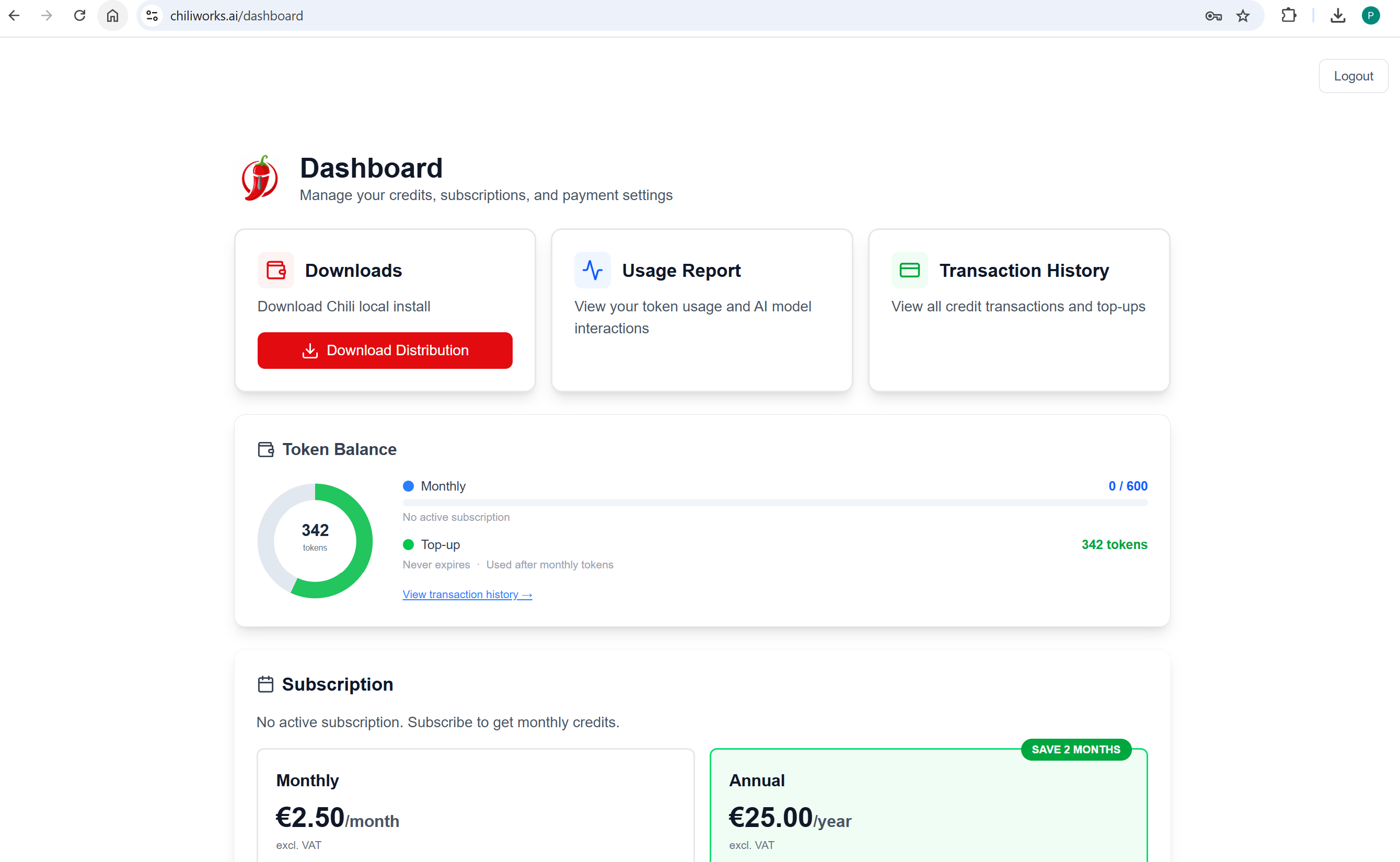
Download the Chili app
After registering, you'll see the download page. Click the download button to get the Chili installer for Windows 11.
Run the installer
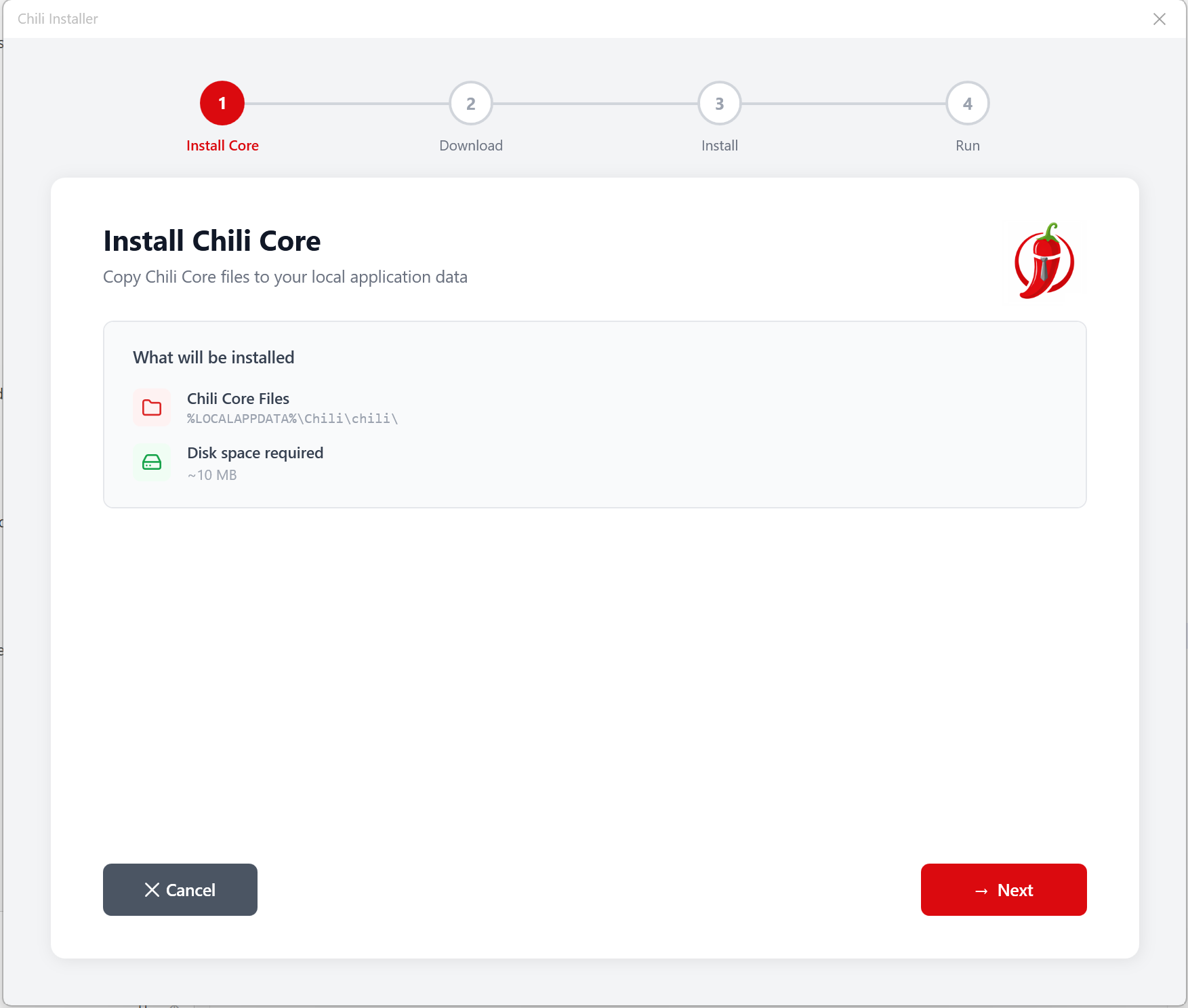
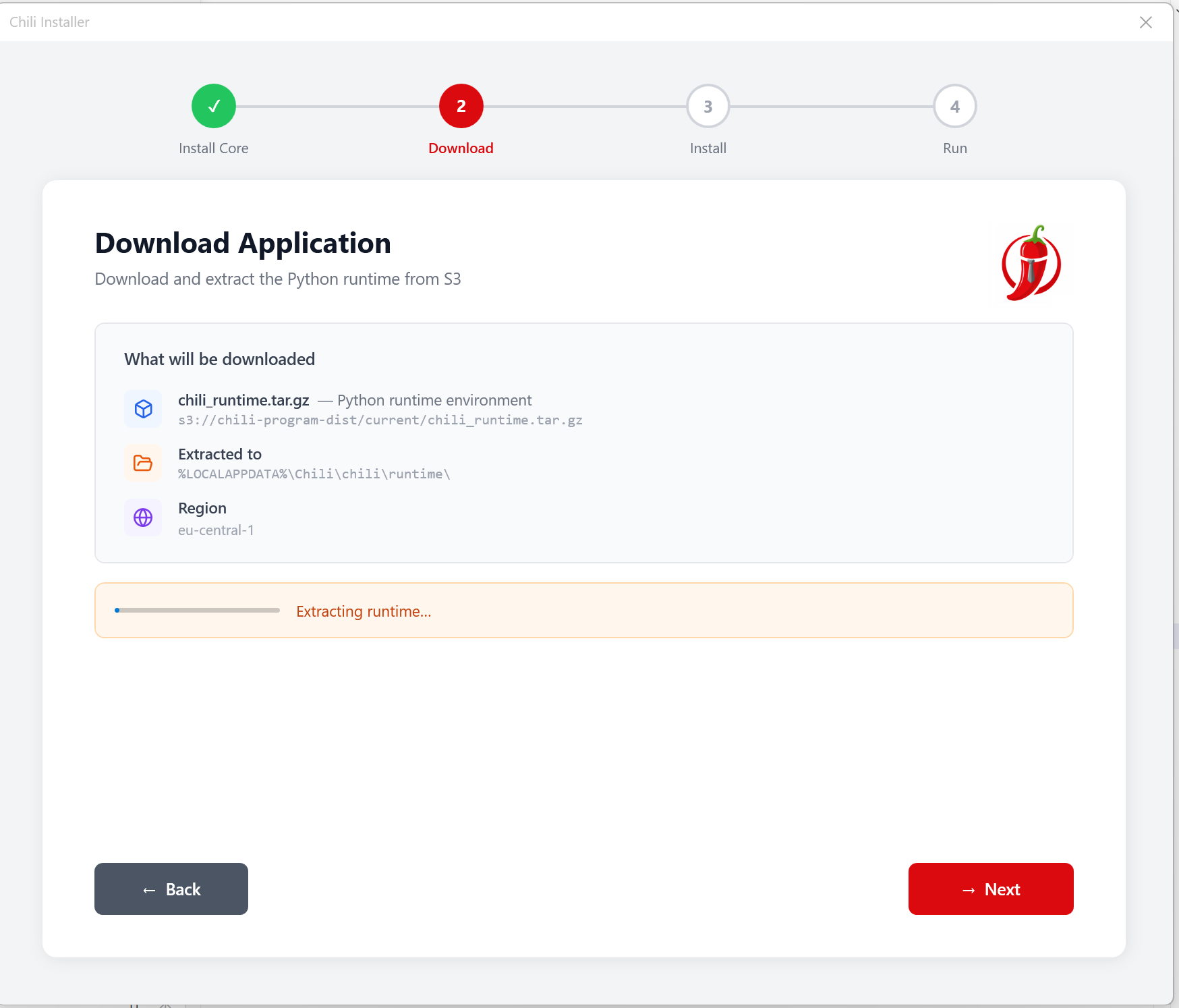
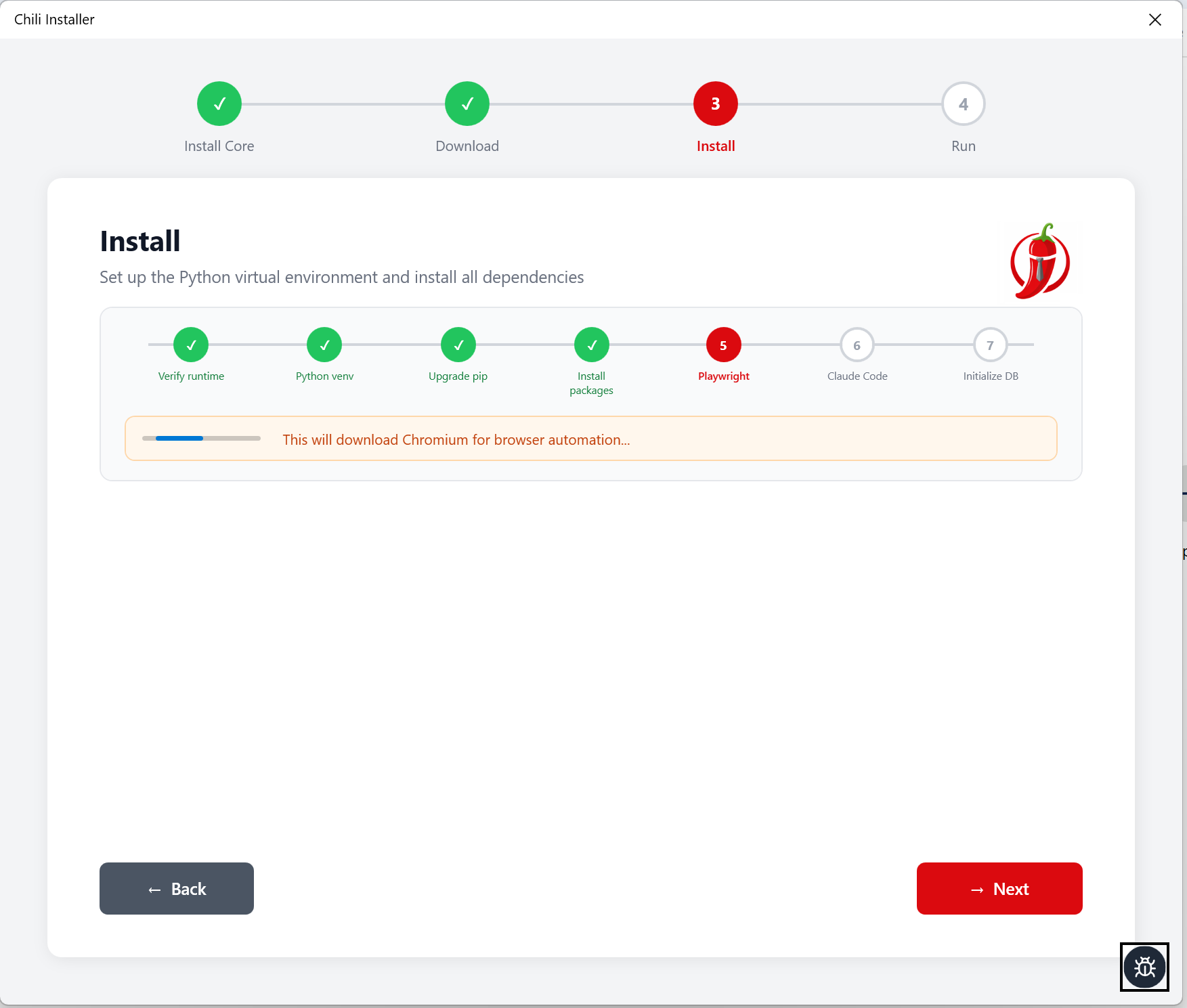
Open the downloaded file and follow the installation wizard. The installer will guide you through the setup process step by step.
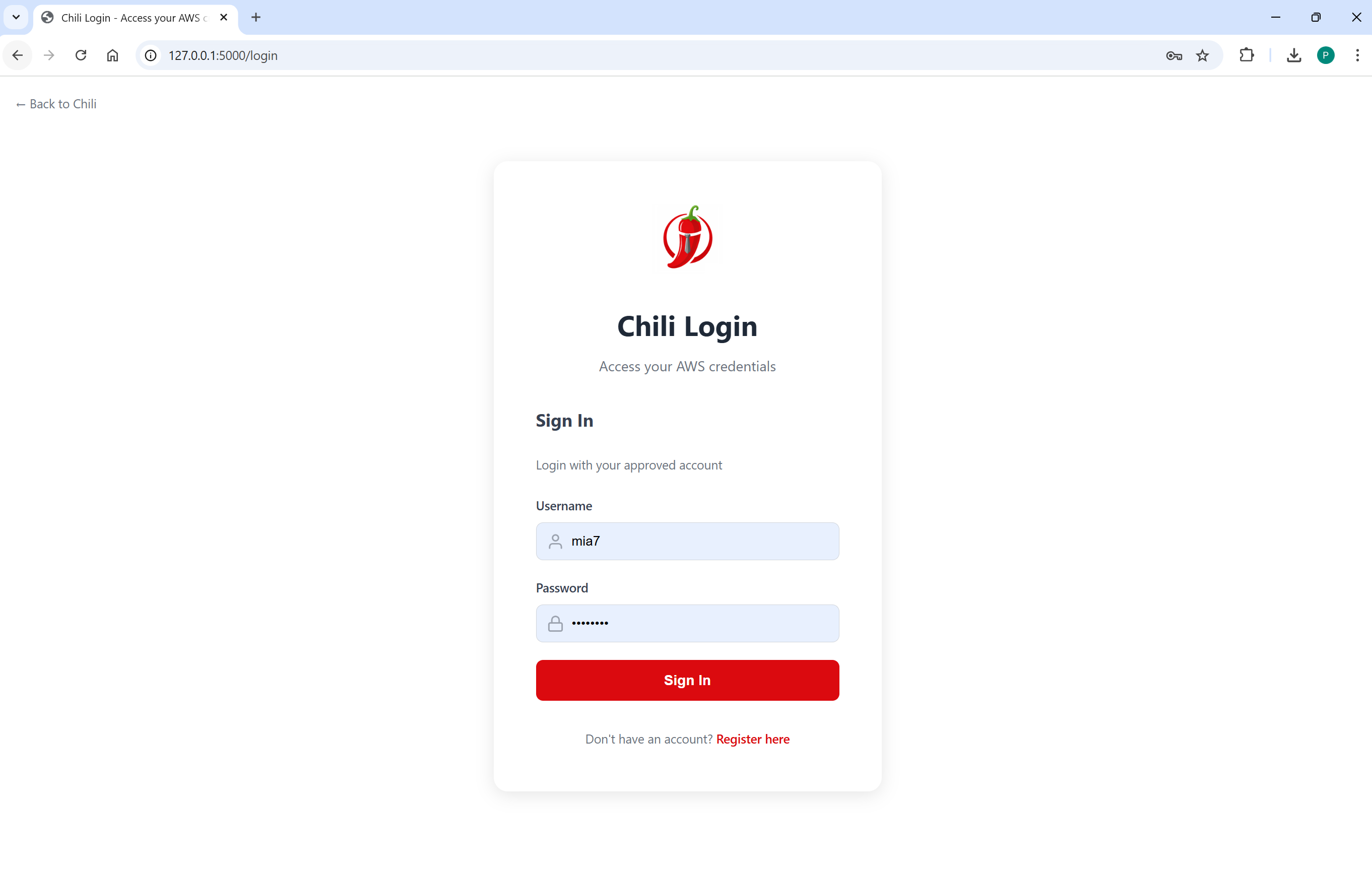
Log in to Chili
Once the installation is complete, Chili will launch automatically. Log in with the account you created in step 1.
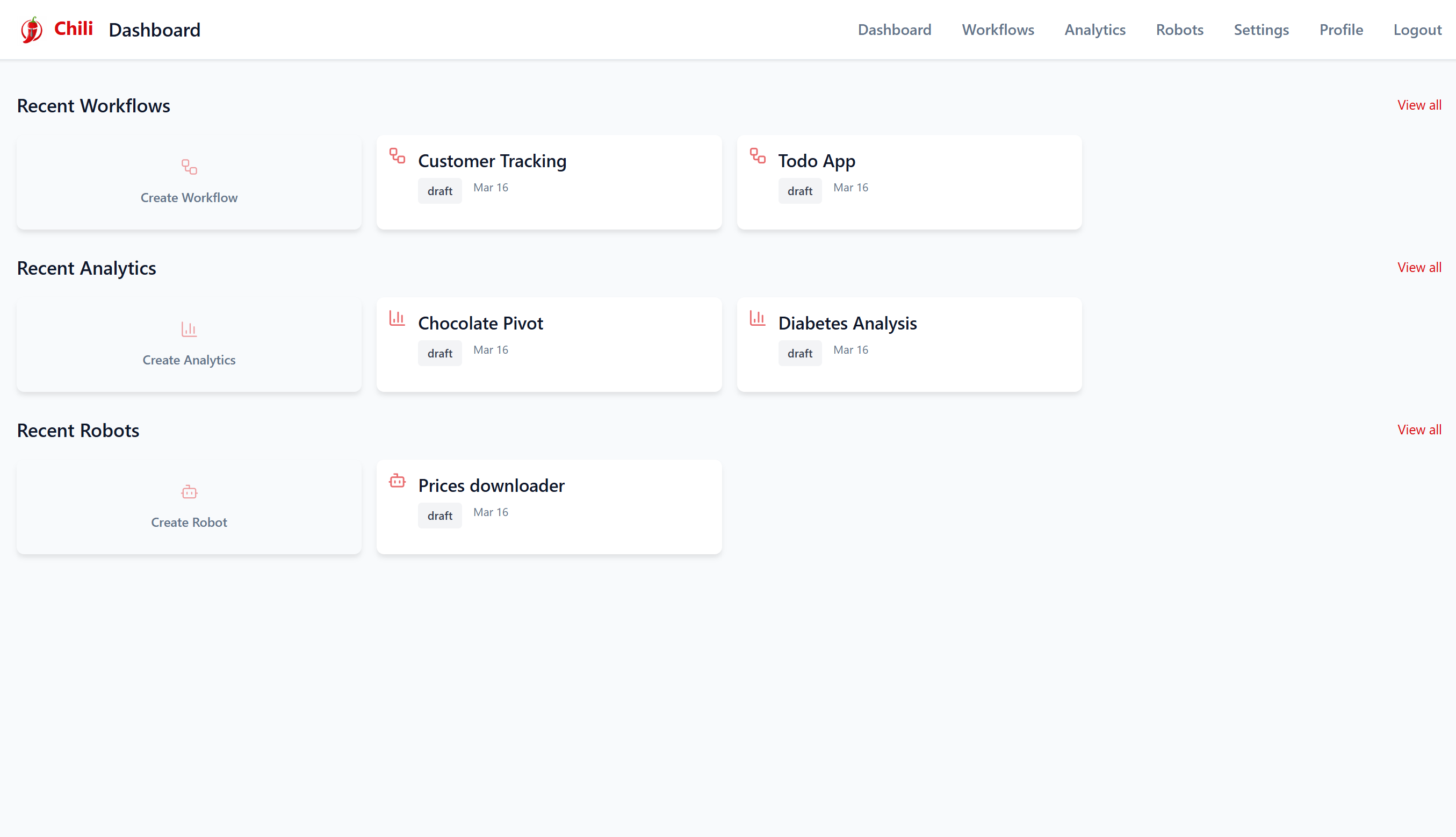
Start building
You're all set! You'll see the Chili overview where you can start creating robots, workflows, and analytics tools. Use your free starter credits to explore everything Chili can do.
System Requirements
Windows 11
Chili requires Windows 11 (64-bit) with at least 4GB of RAM and 500MB of free disk space.
Ready to get started?
Create your free account and download Chili in seconds.